

We are now several months into the new version of Google Analytics: Google Analytics 4. The new Analytics looks different and brings a number of changes compared to the previous version. In this blog we help you get started with GA4 and share tips to keep in mind when it comes to Google Analytics 4.
What is Google Analytics 4 again?
Google Analytics 4 is the new version of Universal Analytics (UA). As of July 1, 2023, you work with GA4 in Google Analytics. And it looks different from the previous version. Where UA focused more on sessions and visitors, GA4 puts the focus on events: it uses an event-driven data model. In short, GA4 should give you an even better view of your website statistics.
Want to know more about the differences? Read about it in our other blog about GA4.
Once you know your way around GA4, the tool offers several benefits:
- GA4 is built on machine learning combined with big data. That lets you make more thorough predictions and get a better read on your audience.
- GA4 uses data streams. You can connect different data streams, for example combining data from your website and an app. That gives you an even more complete picture of your audience and their behavior.
- GA4 has been updated when it comes to privacy and the options around it. You can measure without using cookies.
Tips for Google Analytics 4: do not forget these
If you are mostly used to Universal Analytics, or find Analytics hard to understand in general, it is easy to get lost in all the options within GA4. So we are happy to share a few tips for Google Analytics 4, so you can get the most out of the tool for your website.
Set up your conversions
Conversions are the single most important thing for your website or webshop: when visitors buy an item, fill in a form or get in touch some other way, for example. That is why you need to set those conversions up properly in Google Analytics so you can examine them closely. This is one of the most important tips for Google Analytics 4, because it tells you how many conversions your website gets and where they come from. And you can act on that information.
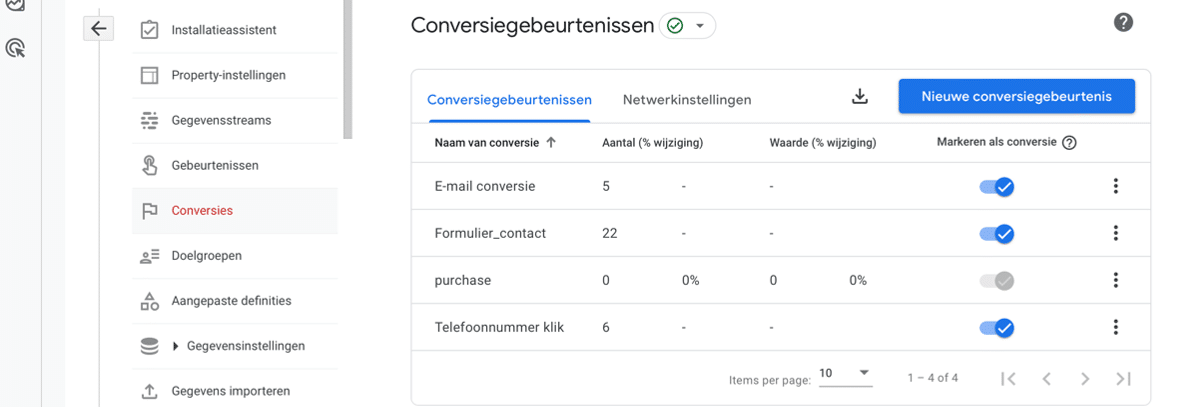
Take a look at the new metrics
Google Analytics 4 introduces a number of new metrics that give you even more relevant insight into your website. Think of metrics such as session duration, pages per session and conversion rate based on sessions or users.
For example, bounce rate (the percentage of visits where only one page was viewed) has been replaced by engagement rate (the percentage of engaged sessions). An engaged session is a visit lasting longer than ten seconds, covering at least two pages or including at least one completed conversion. Engagement rate therefore takes different interactions into account, which makes it more valuable.
Look at your internal traffic
You and any employees are of course on your own website often. But you do not want to count those visits, because they skew the picture. Luckily you can exclude that internal traffic in Google Analytics 4. You can filter traffic out based on an IP address or a range of IP addresses. You can read here exactly how to do that.
Go deeper with reports
In Universal Analytics, the old version of Analytics, you could dig around in custom reports. In GA4 that tab is now called ‘explore’. Here you can generate reports with tables, for example, plus options like funnels and user analysis.
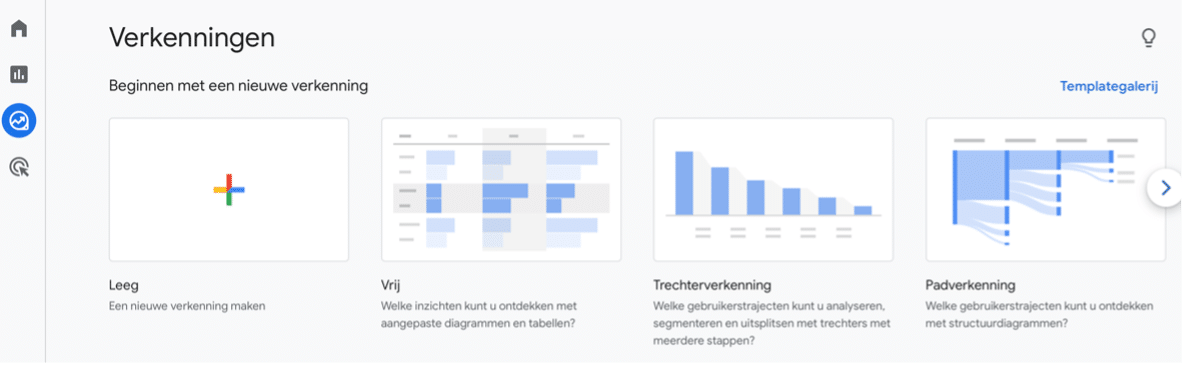
Another one of the important tips for GA4: in UA you had standard reports, while in GA4 you can put them together yourself. That lets you examine the data that matters for your website.
Check the release notes to stay up to date
Do you want to stay up to date on the latest updates in Google Analytics 4? Then check the release notes every now and then. That way you hear about new developments right away and can respond to them immediately.
Link your Google Ads account
Do you run ads through Google Ads? You can link them to Google Analytics and pull that data in. Go to ‘admin’, then to ‘product links’ and ‘Google Ads links’. Here you can create a link with Google Ads. Choose the Google account that holds the Google Ads account.

Set up the connection for your webshop
If you run a webshop and sell products through your website, a connection with Google Analytics 4 is very important. With the Google Analytics plugin for WooCommerce, for example, you get a view of your e-commerce data. Once you know how visitors behave on your website and how they complete a purchase, you can optimize your website accordingly. Do visitors often get stuck at checkout, for instance? Or when searching for products? As soon as you know that, you can put the information to work and improve your website.
Need more tips or help setting up GA4 for your website?
JKC Media is happy to help!
Rather hand it off? See how we help with SEO and findability in Google and AI.
More articles
- Adding my business to Google Maps: how it works plus other tips 19 April 2023
- What is Google Analytics 4 (GA4): and other frequently asked questions 29 August 2022
- Google Search Console: how to sign up and more 30 August 2023