

What is Google Analytics 4?
Google Analytics 4 (GA4) is the new version of Analytics. GA4 is set to become the standard. It is the successor to classic Universal Analytics (UA), the tool that lets you keep a close eye on the statistics around your website. GA4 is a completely new property, though, so you have to set it up again from scratch.
No idea how to set up GA4? JKC Media is happy to help!
What changes compared to Universal Analytics (UA?)
The biggest change when setting up Google Analytics 4 is the way Analytics measures your website. Where UA focuses mainly on sessions and visitors, GA4 focuses more on things that happen: an event driven data model. That needs a bit more explanation: Measurement used to run through sessions, linked to user data. User data is the information Google collects about visitors through cookies and similar means, such as gender, age or location. Sessions cover everything that happens during a visit, like page views or downloads. In an era of mobile apps and single page sites, that is no longer the best way to understand the complete user experience. Apps and games do not load separate pages, for instance, so you miss data. And single page sites are websites built on just one page with tabs or a similar solution. GA4 decouples sessions and page views. It measures a series of events using configured parameters that collect the data. One example of an event is a scroll through the page, tied to a parameter such as percent_scrolled (the percentage of the page the visitor scrolled through).
What are the benefits for me as a website owner?
Thanks to the different way of measuring, you as a website owner get more accurate information and can work far more specifically. GA4 also has a number of new features that can support your online marketing once you have set up Google Analytics 4.
- GA4 is built on machine learning combined with big data. That data lets you make predictions and get a better read on your audience.
- GA4 uses data streams. You can connect several data streams and, for example, track and combine data about your website and your app. That gives you an even more complete picture of how your audience behaves.
- GA4 brings improvements around privacy with privacy options that let you measure without using cookies.
Which steps do I need to take?
Because of the new way of measuring, it is unfortunately not possible to carry your existing UA data over to the new system. So why is it smart to start setting up Google Analytics 4 now? By running both systems side by side for a while, you already build up new data in GA4 while you can keep working in the familiar UA. Once UA is shut down on July 1, 2023 and stops collecting data, you will already have data in GA4 to continue with.
How do I set up Google Analytics 4?
How do you set up GA4 if you already have a UA Analytics account? The first step is creating a GA4 property. Follow these steps:
- Step 1: log in to Analytics and go to ‘Admin’. Click the ‘GA4 Setup Assistant’ option. Follow the steps and create a property.
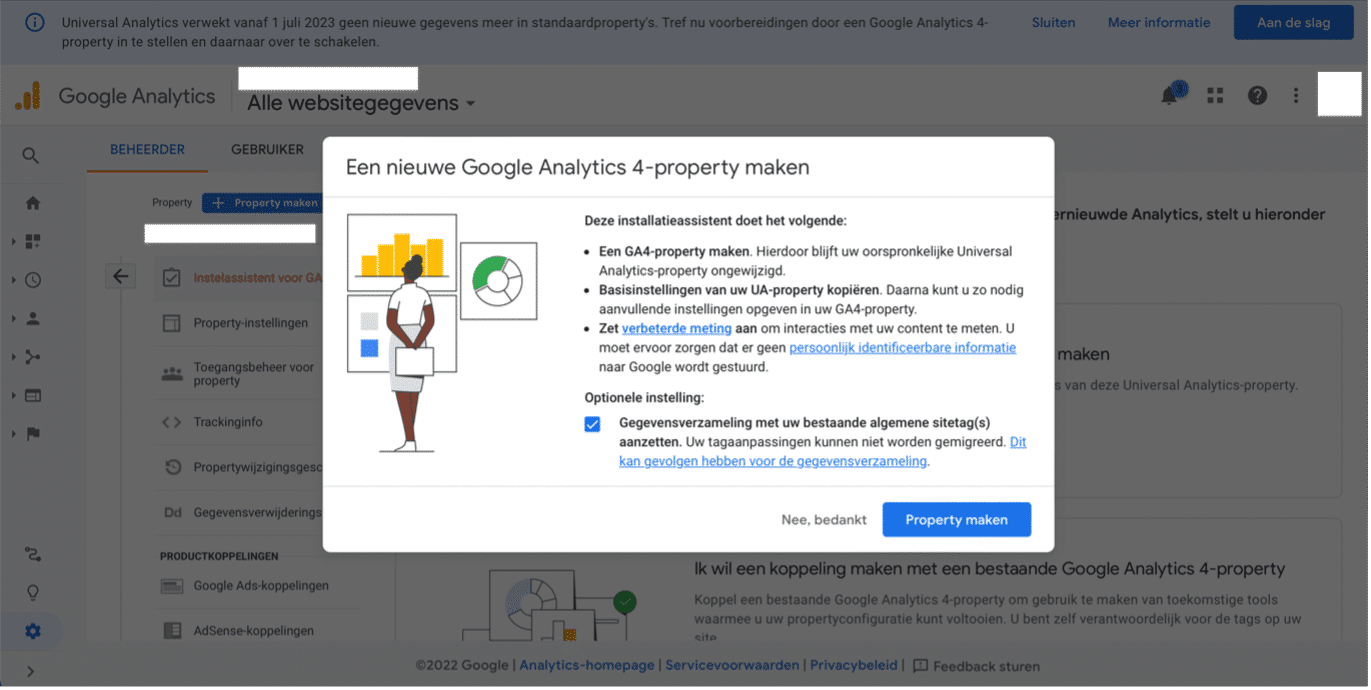
- Step 2: next you land on the setup assistant page. Click ‘Tag installation’ and configure the data stream With the tracking code under ‘Global site tag’ you can install the code on your website, or have your web developer do it. This is also possible through Google Tag Manager.
- Step 3: then check the property settings: currency and time zone. Also make sure data collection through Google signals is turned off under ‘Data settings’, so the property does not accidentally place advertising cookies.
- Step 4: now it is time to create conversions. Go to ‘Create event’ and fill in the event and the parameter. Then visit the page in question to test whether the event is processed correctly. After that, create a conversion event and enter the name of the event to measure the conversions.
- Step 5: filter internal traffic under ‘Admin’ and ‘Data stream’. Scroll down and click ‘Tagging settings’. In the menu, create a rule for every location you want to filter. Then save it as active under ‘Data settings’, then ‘Data filters’ and then ‘Internal traffic’.
- Step 6: you can carry events over from UA to GA4 through Google Tag Manager. You can read more about that here.
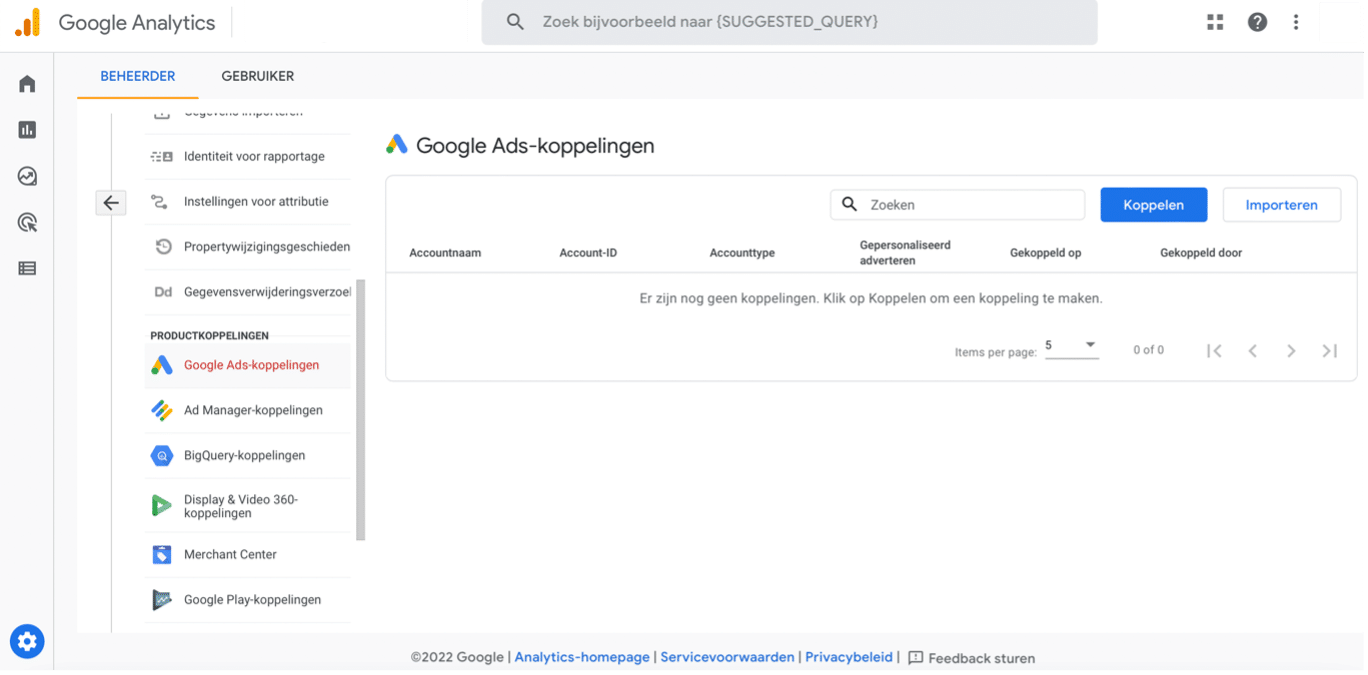
- Step 7: if you use Google Ads, you can link it to GA4. Through ‘Admin’ and ‘Setup Assistant’ you can connect Google Ads. Turn off personalized advertising and click submit to activate the link.
Rather hand it off? See how we help with SEO and findability in Google and AI and a digital strategy.
More articles
- Google Analytics 4 tips: what not to forget 28 September 2023
- GEO and SEO: what Google finally admits 10 June 2026
- After the Google Core Update: this is the new reality for your website 28 May 2026